

How Container Bridge Networking Actually Works
A practical breakdown of Docker’s default network driver and why it matters for containerized systems and cloud architecture

Every time you run a Docker container without specifying a network, something quietly happens in the background. The container gets attached to a bridge network, picks up an IP address, can talk to other containers on the same host, and with the right port configuration, becomes reachable from outside. Most people just accept this and move on. But if you’ve ever had container networking mysteriously break on you, or if you’re designing systems that need real isolation, you need to understand what’s actually going on under the hood.
This article walks through Docker bridge networking from first principles. We’ll cover how traffic actually flows, how isolation is enforced, and how these concepts connect directly to the AWS networking patterns you’ll encounter as a cloud architect.
Hi — this is Pushpit from CloudOdyssey . Each week, I write about Cloud, DevOps, Systems Design deep dives and community update around it. If you have not subscribed yet, you can subscribe here.
What Bridge Networking Actually Is
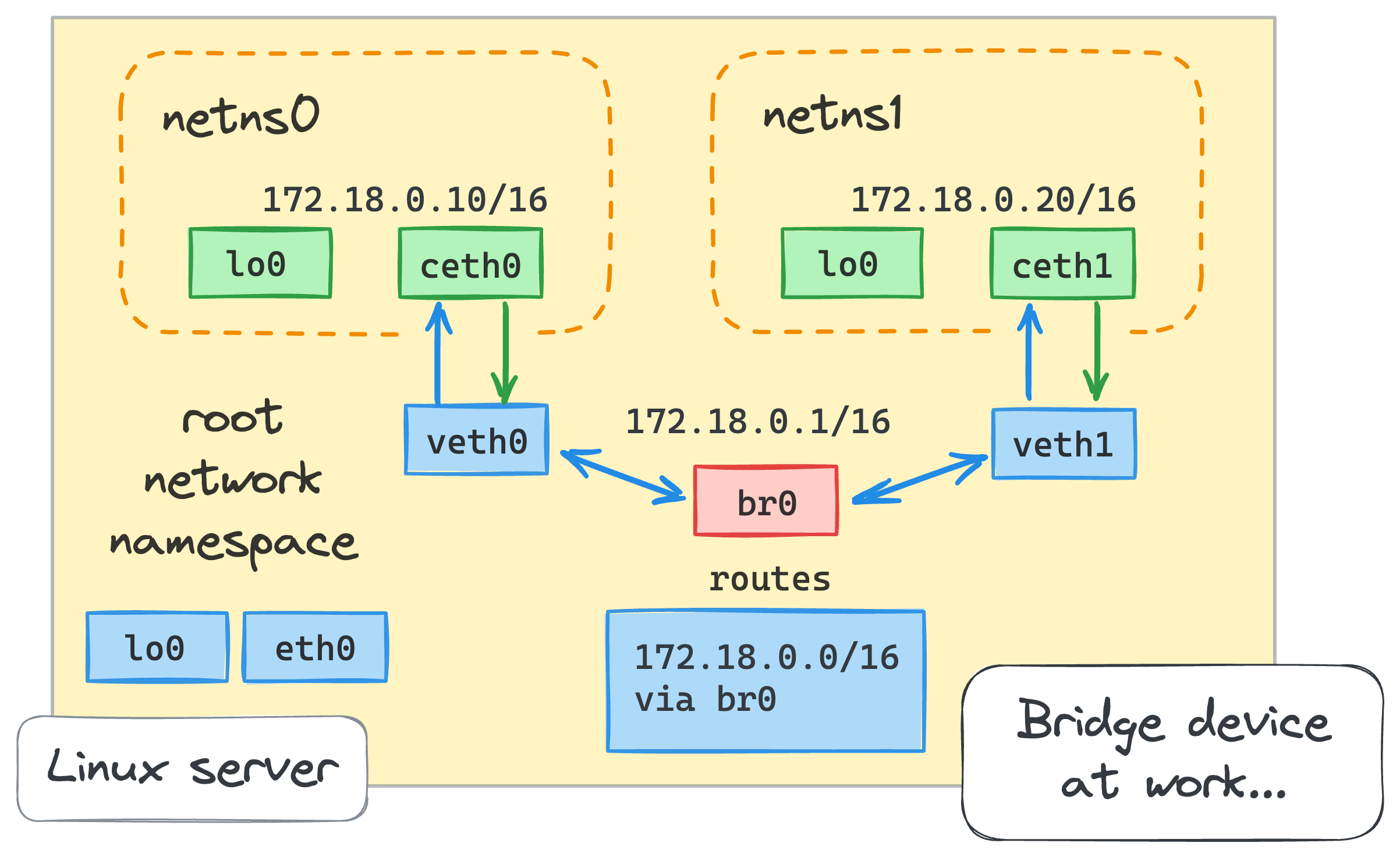
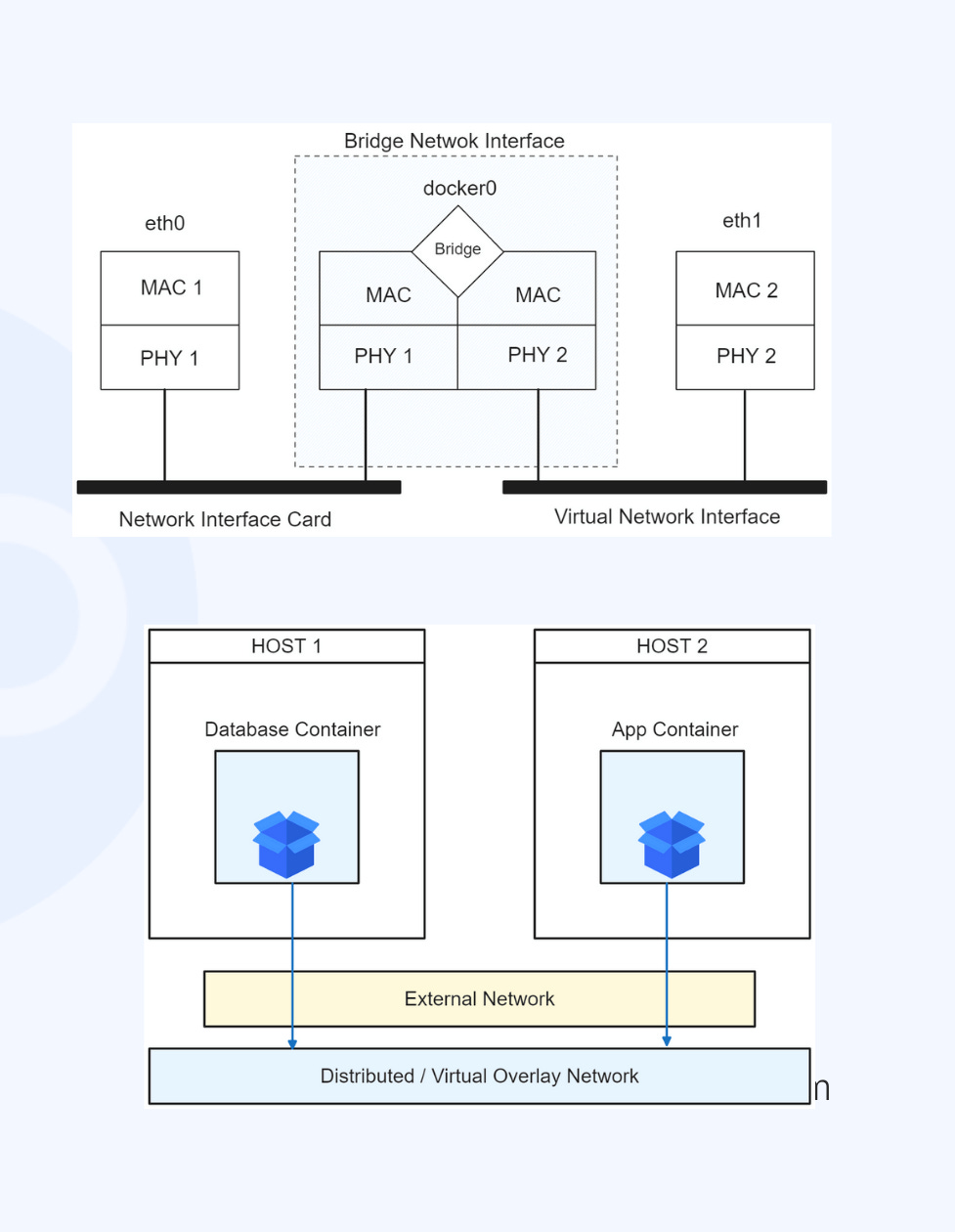
Let’s start with the term itself. A “bridge network” in Docker is built on top of a Linux bridge, which is basically a software-defined network switch. When Docker starts on your machine, it creates a bridge interface on the host called docker0. Any container that joins the default bridge gets connected to this virtual switch.
The way Docker physically connects a container to the bridge is through something called a virtual Ethernet pair, or veth pair. Picture it like a virtual cable with two ends. One end lives inside the container, where it shows up as eth0. The other end sits on the host side, attached to the docker0 bridge.
Here’s where a lot of people get tripped up. When you run ifconfig eth0 inside a container and see an IP address staring back at you, that is not a physical network card. It’s not even close to one. That interface is just one end of a software veth pair. The IP lives entirely in memory, on a virtual interface that Docker constructed for you. The other end of that pair, which might have a name like veth3a7f2c, is sitting right there on the host, plugged into the bridge.
Traffic between containers flows across that bridge. Traffic heading out to the internet goes through the host’s network stack and gets processed by NAT rules that iptables manages. None of this is magic. It’s just Linux kernel networking with Docker orchestrating the setup for you.
Default Bridge Network Behavior
When you use the default Docker bridge network, a few things happen automatically:
Containers receive a private IP address from a subnet, usually somewhere in
172.17.0.0/16Containers on the same bridge can reach each other directly by IP
Traffic going out to the internet gets NAT’d through the host’s public IP
Nothing from outside can reach your container unless you explicitly publish a port
That last point is important. Publishing a port is how you tell Docker to expose a service. When you run:
docker run -p 8080:80 nginxDocker creates an iptables rule that forwards anything arriving on port 8080 of the host straight to port 80 inside that container. The container itself has no idea this translation is happening. It just sees traffic arrive on its virtual eth0 like everything is normal.
One thing worth calling out early: on the default bridge, containers cannot find each other by name. If container A wants to talk to container B, it has to know container B’s IP address. DNS-based discovery, where you just use the container name as a hostname, only works on user-defined bridges. This is probably the single biggest reason you should always create your own named network instead of relying on the Docker default.
Network Segmentation Using Multiple Bridges
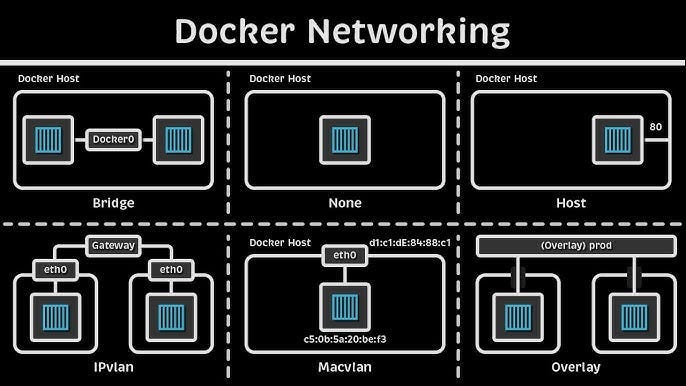
Once you know you can create multiple bridge networks, things start getting interesting from an architecture perspective.
Say you’re running two applications on the same Docker host: a payment service and a logging service. If you put them on separate bridge networks, they genuinely cannot talk to each other, even though they’re sitting on the same physical machine. There’s no routing between the bridges, and iptables actively blocks cross-bridge traffic.
docker network create payments_net
docker network create logging_net
Anything in payments_net is completely invisible to containers in logging_net. The only way those two worlds communicate is if you deliberately set up routing, or if you connect a specific container to both networks.
If you’ve spent any time with AWS, this should feel very familiar. Putting workloads in separate subnets inside a VPC and controlling traffic with route tables and security groups is the exact same concept, just implemented at a different layer. The instinct is identical: draw a boundary, and make communication across that boundary an explicit decision rather than an accident.
Connecting and Disconnecting Containers from Bridges
Something that surprises a lot of people is that you can change a container’s network membership while it’s already running. You don’t need to stop it, recreate it, or redeploy anything.
# Create a user-defined bridge
docker network create my_bridge

# Connect a running container to the bridge
docker network connect my_bridge container_name

# Remove it from the bridge
docker network disconnect my_bridge container_name
This comes in handy more often than you’d expect. A few situations where it’s genuinely useful:
Sidecar patterns: A monitoring or debugging container might need temporary access to a service’s network without being a permanent member of it.
Blue-green deployments: You can gradually shift traffic by wiring new containers into an existing network while old ones finish draining.
Live debugging: Sometimes you want to attach a diagnostic container to an isolated network just long enough to poke around, without touching anything in production.
Inspecting Network Interfaces on the Host
If you ever want to see what Docker is actually doing to your host’s network, just run ip addr or ifconfig. Alongside your regular physical interfaces, you’ll see something like:
docker0: flags=4163<UP,BROADCAST,RUNNING,MULTICAST> inet 172.17.0.1
veth3a7f2c: flags=4163<UP,BROADCAST,RUNNING,MULTICAST>
vethb91e44: flags=4163<UP,BROADCAST,RUNNING,MULTICAST>
Each of those veth entries corresponds to one end of a virtual cable connected to a running container. The docker0 bridge is what ties them all together. If you’ve created user-defined networks too, you’ll see additional bridge interfaces, usually named br- followed by the network ID.
This is worth understanding from an operations standpoint. The host’s network stack sees every single container interface. All traffic flows through the host’s iptables rules. That’s actually a good thing when you’re troubleshooting, because it means everything is visible and auditable from the host. But it also means that whoever has access to the host has visibility into all inter-container traffic.
Host Networking Mode
Host networking is a completely different beast. When you launch a container with --network host, it stops being a separate network namespace altogether. It just borrows the host’s network directly.
docker run --network host nginxIn this mode, Nginx binds straight to the host’s network interfaces. Port 80 on the container is port 80 on the host. No port mapping needed, no NAT translation happening, no bridge in between. The app is immediately reachable on every interface the host has.
The trade-off is straightforward: because the container shares the host’s network namespace, two containers cannot run applications on the same port at the same time. If one container has already grabbed port 80, the next one trying to do the same will fail, just like two regular processes on a host would conflict.
Host networking tends to show up in a few specific situations:
Reverse proxies like HAProxy or Nginx that need to bind to specific host addresses or multiple interfaces
High-performance load balancers where the overhead of NAT translation adds up at scale
Network monitoring tools that need to capture or inspect traffic on actual host interfaces
The common thread is that NAT adds overhead and complexity. For most applications it doesn’t matter. But when you’re handling millions of connections, shaving out that translation layer can make a real difference.
The None Network Driver
If host networking is one extreme, none is the other.
docker run --network none my_jobA container running with the none driver has no network interfaces at all, apart from a loopback. It cannot talk to other containers. It cannot reach the internet. Nothing can reach it. It’s as isolated as a process can be.
This sounds extreme, but it’s exactly what you want in certain scenarios:
Batch jobs that read from a volume, do their work, and write results back to a volume. No network required.
Sensitive processing workloads like cryptographic operations where eliminating network access is a security requirement, not just a preference.
Compliance-constrained environments where you need to be able to demonstrate that certain data was processed in a verifiably air-gapped context.
Subtle Details That Matter
A few things that tend to trip people up in practice, even after they understand the basics:
Bridge networks depend entirely on iptables. All the isolation, all the forwarding, all the NAT, it’s implemented through kernel-level packet filtering rules. If something else on your system modifies iptables without Docker knowing about it (certain VPN clients and security tools do this), container networking can start behaving in ways that seem completely inexplicable until you look at the actual rules.
Containers on different bridges cannot talk to each other by default. There’s no implicit routing between user-defined networks. If you need cross-bridge communication, you have two options: connect a single container to both networks, or configure explicit routing. Either way, treat it as a deliberate architectural decision and document it.
Port publishing listens on all host interfaces by default. When you publish port 8080, Docker makes it available on 0.0.0.0:8080, which means every interface on the host. If your host is multi-homed and you only want a service available on a specific interface, you need to be explicit: -p 127.0.0.1:8080:80.
User-defined bridges give you DNS, the default bridge does not. This keeps coming up because it catches people off guard. On a user-defined network, containers find each other by name. On the default docker0 bridge, they can’t. Just always create a named network and save yourself the confusion.
Relationship to Cloud Architecture
If you’re working toward your AWS Solutions Architect certification or just designing containerized systems on AWS, the mental model you’ve built here translates almost directly.
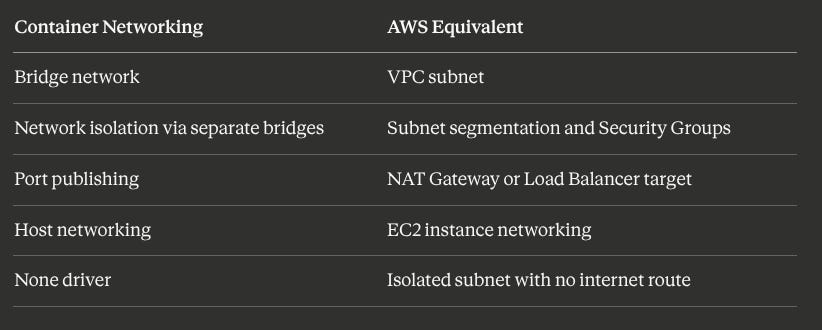
The underlying intent is the same in both worlds: define your network boundaries clearly, make cross-boundary communication an explicit choice, and expose services to the outside only when you mean to. Whether you’re drawing a VPC diagram or writing a docker-compose.yml file, you’re making the same kind of decisions.
For AWS exam questions specifically: when you see a scenario about isolating workloads or preventing lateral movement between services, the answer usually involves subnet segmentation and security groups. That’s the same instinct that should lead you to put Docker workloads on separate bridge networks when they don’t need to talk to each other.
Conclusion
Container bridge networking looks simple from the outside, and that’s mostly by design. Start a container, it gets an IP, traffic works. But what’s actually happening involves Linux bridges, virtual Ethernet pairs, iptables rules, and NAT translation, all wired together automatically by the Docker daemon so you don’t have to think about it unless something goes wrong, or unless you’re designing a system that genuinely needs isolation.
Understanding the mechanics matters for three concrete reasons:
Operations: When something breaks, you need to know where to look. The veth pairs on the host, the iptables rules, the bridge configuration. These are not black boxes once you know what to look for.
Security: Isolation is only as strong as your deliberate choices. Separate bridges, careful port publishing, and avoiding the default network are active decisions that shape your actual security posture.
Architecture: Container networking concepts and cloud networking concepts are not separate disciplines. They’re the same problem at different scales. Being fluent in one genuinely makes you better at the other.
Bridge networking is the default because it’s a sensible default. But defaults are worth understanding, not just accepting.
If this was useful, share it with someone who’s setting up container infrastructure for the first time or grinding through their AWS Solutions Architect prep.
